
Review of iiNet’s Wireless Bridge
iiNet’s Wireless Bridge is a handy little device that removes the need of having an Ethernet (or network cable) from one end of your house to the other; specifically from your modem (hopefully you have a BoB2) to your TV where you have internet enabled devices such as Fetch TV, your Xbox or PS3.
I am sure many people have tried connecting their Xbox or PS3 to the internet only to find a 20+ metre Ethernet cable lying around on the floor to be such an inconvenience, or to face the costs of having a cable professionally installed. iiNet’s Wireless Bridge solves this problem by replacing the cable with a high-speed wireless connection between two devices.
The iiNet Wireless Bridge is targeted to those who have iiNet Fetch TV and to those who have the problem of connecting Fetch TV to their Modem as it could be in another room or it can’t be physically connected via an Ethernet cable due to the location of the Modem or Fetch TV. The Wireless Bridge solves this issue to easily connect Fetch TV to the internet without the need of having a cable.
You may be interested in reading my article “What Does iiNet’s BoB1, BoB Lite, BoB2 and Wireless Bridge Actually Do, And Why Would You Want One” for another explanation about the Wireless Bridge.
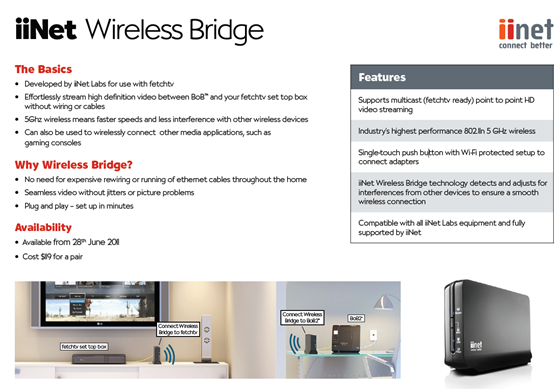
iiNet also has a very easy to read description about the Wireless Bridge:
The Specs
The Wireless Bridge comes with two Wireless Bridge units (one to have near your Modem, and one to have near your TV; two CAT5e Ethernet cables; and two AC adapters. It supports Wireless LAN 802.11n and runs on the 5GHz band that can deliver speeds of up to 300Mbps, with support of the latest encryption standards. More information about the specification can be found here.

The back view of iiNet’s Wireless Bridges with my armature camera work with my Nokia 5800 phone.
My Thoughts
Although I don’t have Fetch TV (or one of the latest gaming consoles for that matter), I do see a use for the Wireless Bridge as there are a number of different scenarios you can use it for such as:
- Connecting your desktop computer in a far away room that doesn’t have a Wireless Adapter
- Connecting the Wireless Bridge to a switch to allow multiple computers in a room such as a backyard garage/room (that’s away from the Router/Modem) to access the internet instead of using a cable
- Share an Internet connection with your neighbour
- Connect Fetch TV, Xbox, PS3 to the internet easily
- Extend the range of your Wireless in your house my connecting the Wireless Bridge to another access point
When I unboxed it, I was shocked to find that there wasn’t any documentation with the Wireless Bridge at all, no instruction manuals or anything, which was a bit weird for a tech gadget. However, you don’t really need any unless you brick it, as I’ve seemed to have done! Simply plug the “Host” Wireless Bridge into your Modem, and the “client” Wireless Bridge unit into your device you want to connect, press the WPS button and you’re good to go in a about 30 seconds after everything connects. However, if your network uses static IP addresses, you may have to log into the Wireless Bridge Administration page to configure it. The default username and password for iiNet’s Wireless Bridge is admin/admin, which I had to ask for on Whirlpool. However, you don’t need to use the Administration page as it simply works out of the box.
The labelling of “Host” and “Client” is just an ordinary sticker on the back which makes it look a little unprofessional in my opinion. It would have been better underneath, or use a different style label (like the ones on the bottom) as it retracts from the overall design of it. Then again, you don’t really look at the back of it.
In terms of performance, it’s quite good. I have my laptop upstairs, and the Wireless Signal I get from BoB2 isn’t that strong, so transferring files from Desktop computer (connected by cable) to my laptop, I was only getting about 300-350kbps which is pretty slow. I then connected my laptop to the Wireless Bridge, and that speed went up to 7-10Mb/s for receiving files on my laptop from my Desktop, and about 5Mb/s for sending data from my laptop to my Desktop which is a huge increase compared to using the Wireless connection provided by BoB2.
This goes for downloading files off the Internet. Through BoB2’s Wireless Connection using my laptop, my transfer rate was less than 1Mb/s, but being connected through the Wireless Bridge, I got the same download speed that my Desktop computer receives when it’s connected via LAN which is 2.1Mb/s from downloading the same file (with BoB1, I could never get higher than 1.9Mb/s downloading from the internet, so there is an improve with BoB2 over BoB1).
In terms of range, I haven’t really tested it out as I don’t have PowerPoint’s far away enough from my router, but inside my house, I got pretty much maximum speeds everywhere which is a great sign.
Problems…
There aren’t many problems with it when it comes straight out of the box. Plugged it in and BoB2 gave both Wireless Bridges an IP Address and I was good to go. However, it took me a while to realise that the Wireless Bridges have a configuration page, inwhich I couldn’t seem to access when I did my first tests. Testing it a few weeks later, I could access it. However, there isn’t really much you need to configure there. I did have a play around with a few settings, and I changed the two devices from Client to Host, and Host to Client, but I seemed to have lost access to the configuration page on both Wireless Bridges, but I can still connect and send data to my laptop, which is still connected through the Wireless Bridge.
Update: I would have published this post ages ago, because I wanted to include screenshots of the configuration page, however, I’ve seemed to brick the Wireless Bridges, which BoB2 won’t give it an IP address, and I can’t access the configuration pages to revert them back. I believe they are both still stuck in client mode, and I can’t change them back, even after trying numerous factory resets. A device that I would appreciate documentation for, iiNet doesn’t seem to provide any.
Update 2:iiNet sent me out a second pair, for free, and I was able to connect the new AP iiNet Wireless Bridge to my old Client AP Wireless Bridge (which was in client mode), and I was able to connect and change it back to AP mode. By doing so, I have unbricked the device. It is odd that the reset button did not work. I did notice that the MAC addresses on the label was different to what BoB2 stated in the DHCP list.
Apart from that, there aren’t really any other problems I’ve had with it.
Should You Get One?
If you are planning to run a long Ethernet cable through your house, or across the floor where everyone walks, then yeah, I would seriously consider getting one. If your wireless signal lacks in a particular area of your house where you have a computer, and need a bit of a speed boost, then I would think about getting one. The other alternative to the Wireless Bridge is to get one of these Ethernet over Power devices as an alternative, or look around for other Bridge type devices.
Further Reading: Make sure you check out my other iiNet reviews
- Review of the original BoB modem/router
- Review of BoB2
- What is a BoB1, BoB2, BoB Lite and Wireless Bridge?
- Review of BoB Lite
- A comparison of BoB1, BoB Lite and BoB2 WiFi
- BoB2, BoB Lite, and Wireless Bridge giveaway (Tournament updates here, play your hand now)
Disclaimer: iiNet gave me a Wireless Bridge to review and two to giveaway. These views are of my own.


Just got a BoB2 to add to my new naked DSL package and replace old phones.
Now wondering if I should ebay my Netgear N600 WNDR3700 router or try and keep it in the network as some sort of eg. range extender to link into my BoB2 (like the wireless bridge mentioned here)
The Netgear had:-
Dual frequency
QoS
Guest Network
ReadyNAS (linked with 1TB Ext HD)
Ready DLNA
From what I have read about BoB2, it doesn’t offer any of this. Is this correct? Not really a big deal but nice to know if I have an unknown opportunity to integrate.
Hi,
It’s really up to you if you want to sell it, or use it as spare parts – you never know when it would come in handy.
Before I signed up with iiNet, I was living with someone else, the modem/router was in his room at one end of the house, and I was in the middle, however, the WiFi strength wasn’t that good, and I had my desktop and two laptops to connect, so we ran a LAN cable to my room. However, I couldn’t use my laptops in other parts of the house, so I used my old Dlink 524 router, connected that to the LAN cable and connected my computer to it, used it like a switch, and also used it to extend the wireless range to other parts of the house – so it did come in handy.
The only thing is, I am not sure if you can use your Netgear router as a wireless repeater, which means, it connects to the Network via the Wireless, and rebroadcasts it making the range longer. In my situation I connected the Dlink via cable then broadcast the Wireless Network, but I am not sure if you want to do that – but that’s how I extended the range of my Wifi Network.
BoB2 has: yes/no:
Dual frequency: No, 2.4 GHz to 2.484GHz only
QoS: Yes
Guest Network: No, but can broadcast two SSID’s (so can have two different WPA passwords
ReadyNAS (linked with 1TB Ext HD): Has USB File/WebServer support, but performance is limited, HDD would need external power supply
Ready DLNA: I don’t think so
I hope this helps, any further questions, just reply here, (and sorry I missed your chat request earlier)
[quote]I did notice that the MAC addresses on the label was different to what BoB2 stated in the DHCP list.[/quote]
For most wireless devices their is atleast one MAC address for wireless and one for wired.